

Build Apps with Microsoft Copilot Managed Runtime Step By Step Step by step · Step 5
Stop Surprise Copilot Bills With a Spending Policy
Cap Copilot credit spending before a surprise invoice: scope to a group, allow only the services you use, set a per-user monthly cap and an early alert.

Credits are not just for building. When someone chats with Cowork, that is credits. When an app sends an e-mail for them, that is a little more. Picture forty app opens a day per person, across a whole company, and someone in finance will ask who is paying.
A spending policy answers it in one place: who may spend credits, on which services, and how much per person, per month. Remember the difference: a budget warns; a spending policy actually stops.
Step 1: Do not accept the default
Microsoft 365 admin center → Copilot → Cost management → Get started. The default is every user with no limit at all. Choose Customize setup.
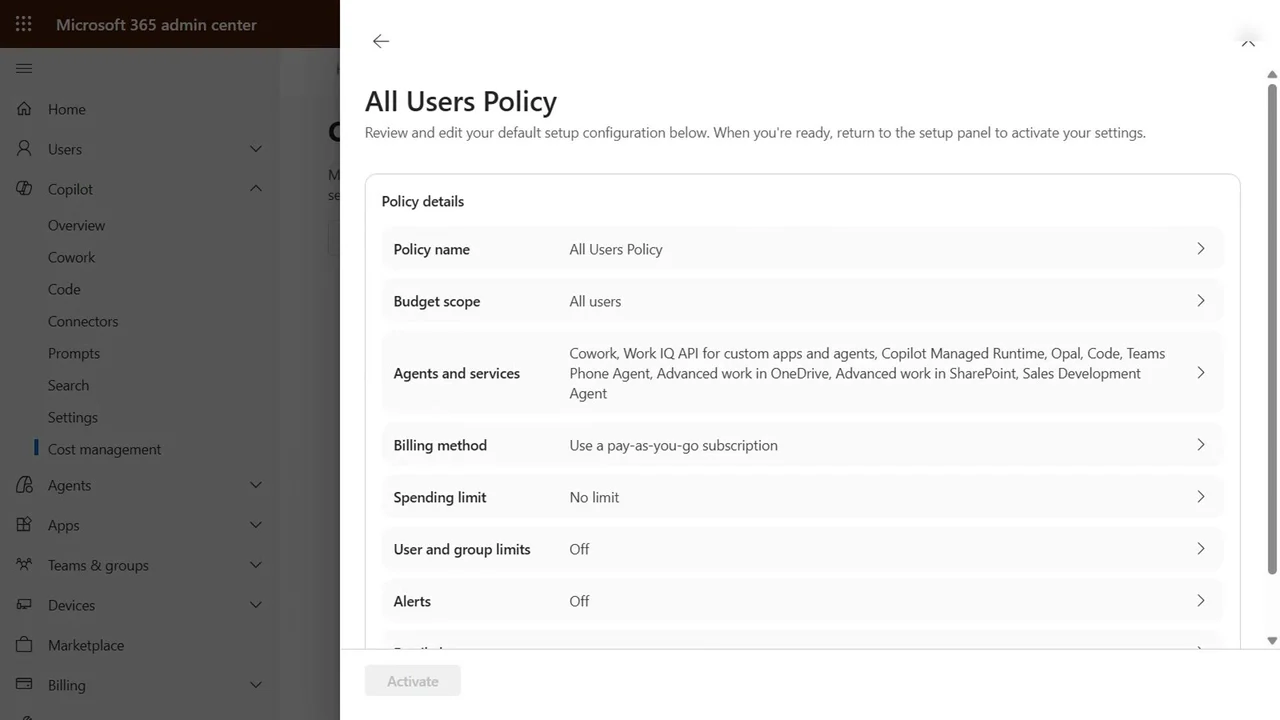
Step 2: Who may spend
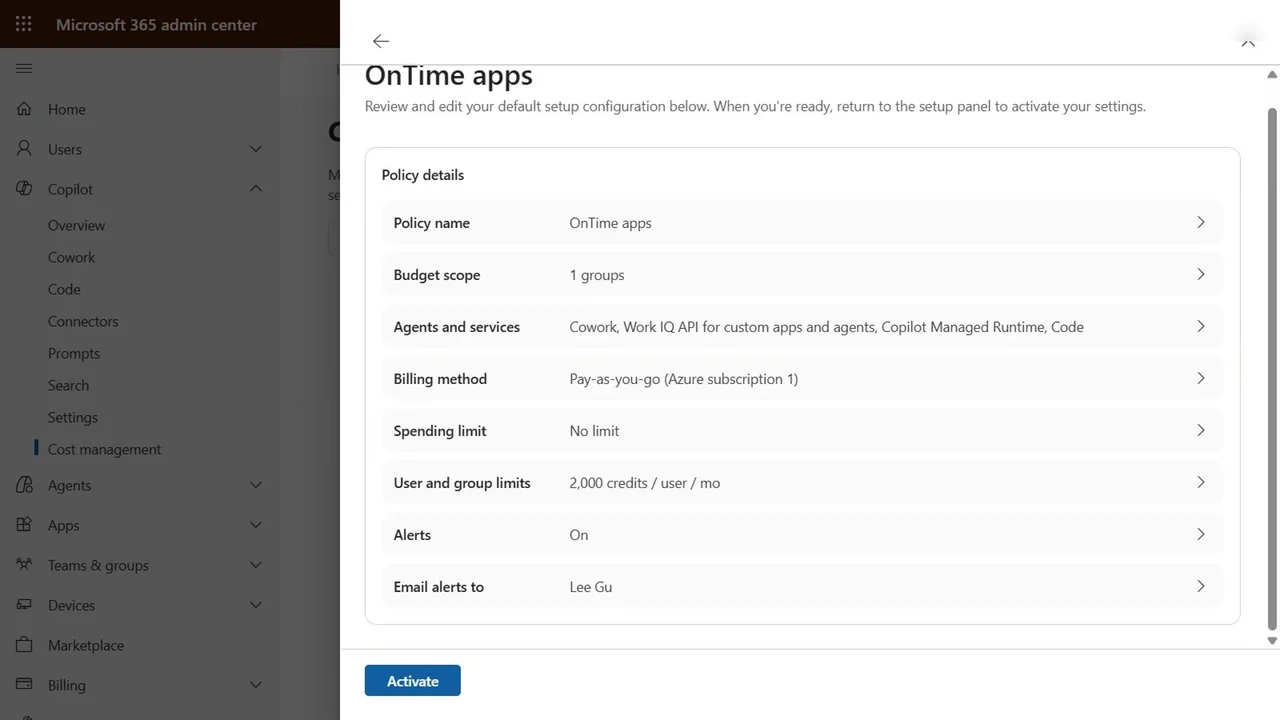
Name it OnTime apps. Budget scope: specific groups, OnTime Ops. Four people, and only four.
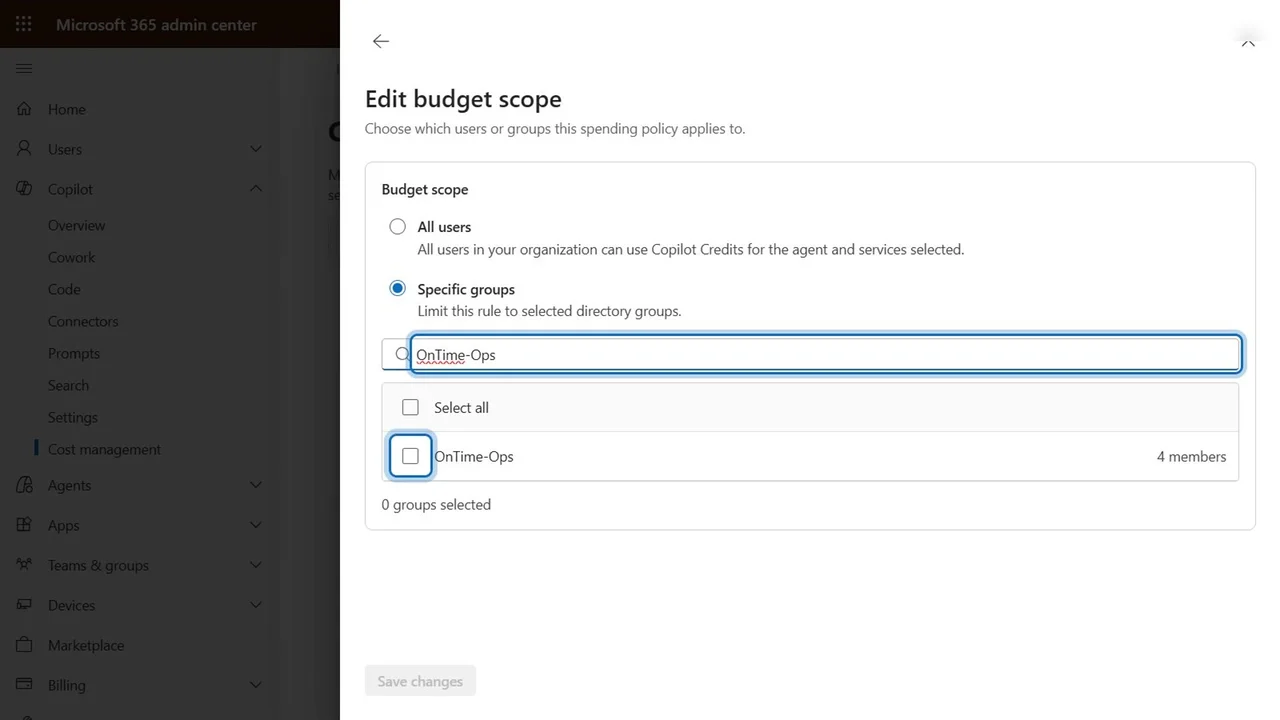
Step 3: On what
Switch off allow new agents and services as they become available: if Microsoft launches something next month, nobody starts spending on it without a decision. Keep what OnTime uses (Cowork and Code, the Work IQ API, and Copilot Managed Runtime) and untick the rest, one by one.
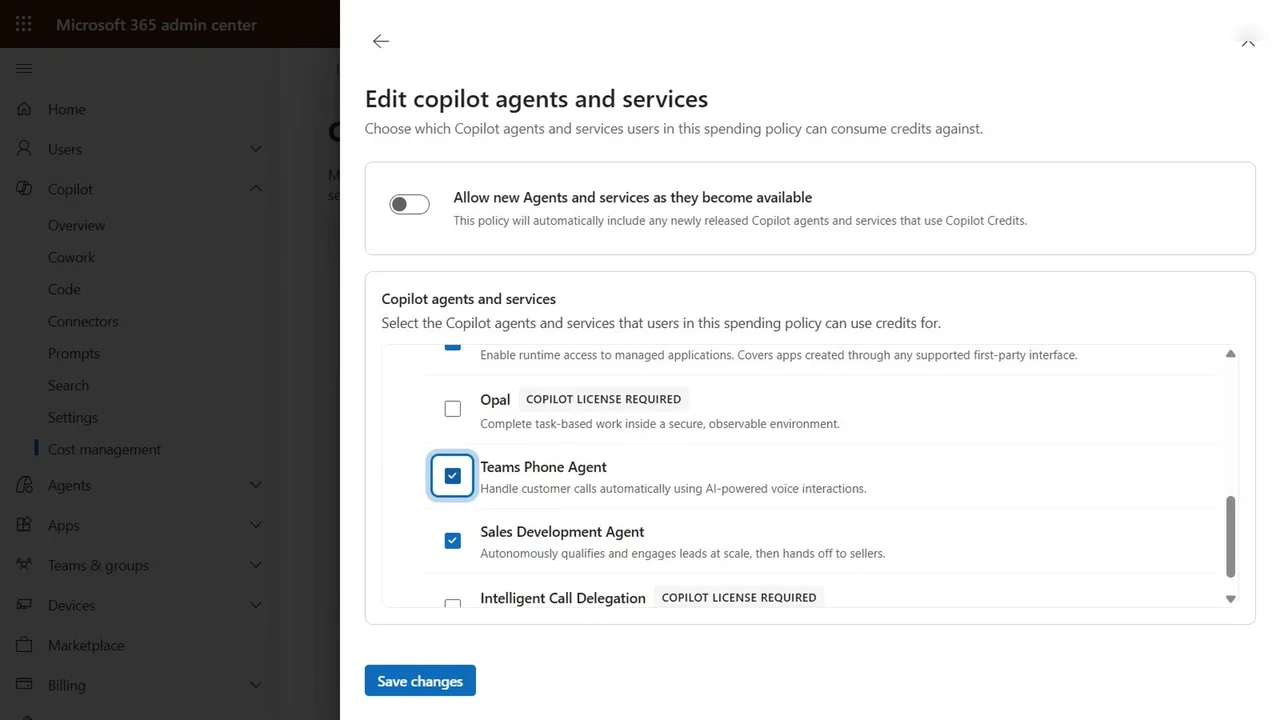
Step 4: How much
Limit monthly spending per user: 2,000 credits a month, about twenty dollars, the smallest Microsoft allows. When someone hits it, their Copilot services pause until the first of next month.
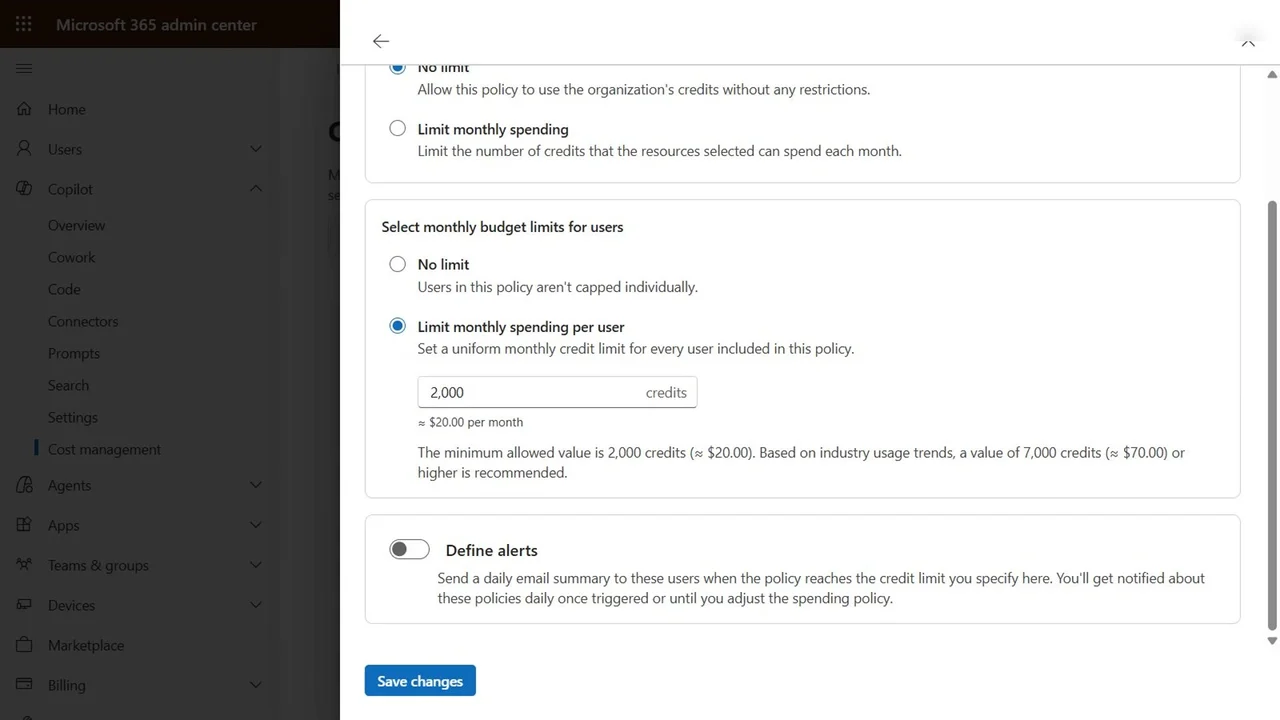
Turn on alerts to the budget owner at 1,000 credits, halfway to the cap, so they hear about it long before anyone is blocked.
Step 5: Read the summary, then activate
Read it top to bottom: one group, only the chosen services, 2,000 credits per person, alerts on. Activating costs nothing; you only pay for credits actually used.
How you know it worked
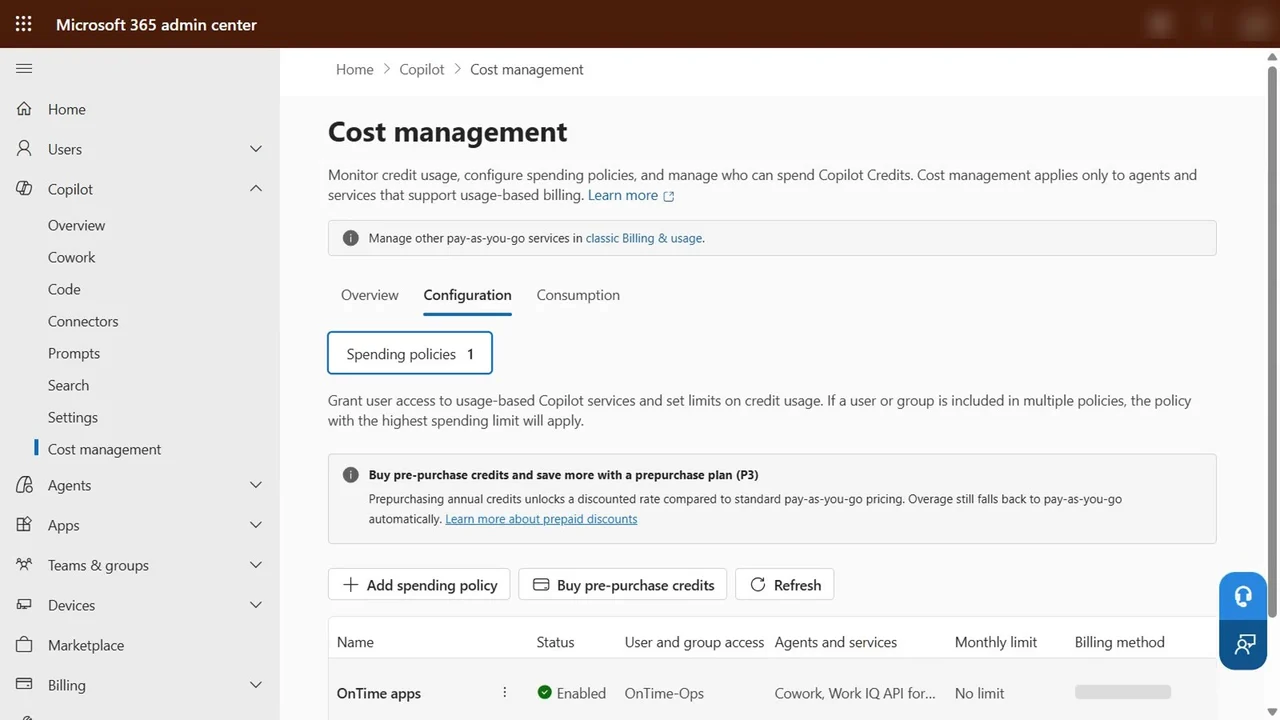
Configuration tab: OnTime apps, Enabled. From now on, only the OnTime Ops team can spend Copilot credits, each person is capped, and the budget owner is warned early.
What a tech lead should take away
- Set the spending policy before the first app ships, not after the first invoice.
- Allow-list services; do not let new services start billing automatically.
- Users cost credits too, not just builders: plan for usage, not only for development.
Do it yourself
- The full Build Apps with Microsoft Copilot Managed Runtime Step By Step courseEvery Part, free on YouTube, in order
- Hands-on lab guideThe exact steps, what it costs, how to clean up
- Practice simulationRehearse every click in your browser; the first lab is free
- Mock examFree 10-question sample, then the full timed mock scored by domain
Lab guides, practice and full mock exams come with a subscription. See the plans